
Settings on the display
A few things can be set directly on the display, without a phone. They are meant for parents and therefore not openly visible
A few things can be set directly on the display, without a phone. They are meant for parents and therefore not openly visible.
Opening the settings
Press and hold the status indicator at the top right of the display (the symbols for Wi-Fi, battery and the like). The hold time can be set from 1 to 10 seconds under Settings › Display & controls › Controls on the display › Hold times › Hold time for settings access. Below 3 seconds children easily get in.
The settings on the display open with four tiles:
| Tile | Effect |
|---|---|
| Network settings | set up Wi-Fi and LAN (see below) |
| Bluetooth settings | pair headphones and speakers (Bluetooth) |
| Reboot / Shutdown | restart the box or switch it off |
| Parent web app | shows the QR code for the app |
At the top you see the box's hostname and IP address.
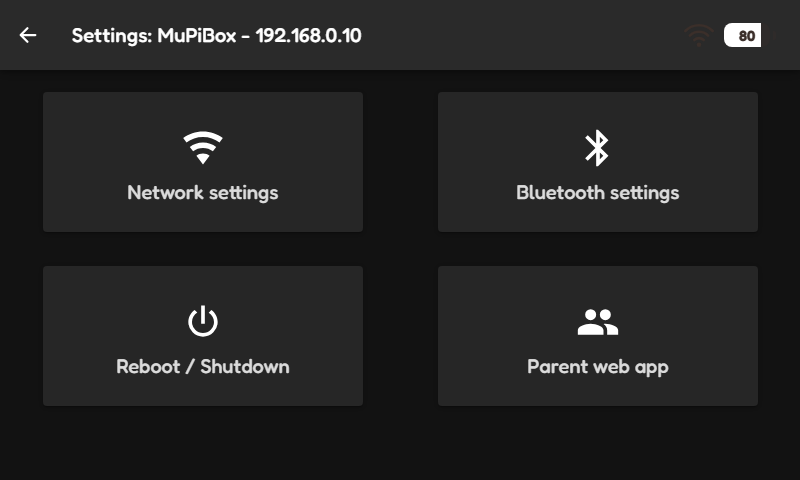
The settings on the display
The QR code for parents
Tap Parent web app. A QR code appears. Scan it with your phone: you are then signed in to the app, even without a password. You change the text next to the QR code under Settings › Appearance › Text on the display.
Network settings
The Network settings tile opens the network settings. If there is a LAN port, you choose between WiFi and LAN at the top (the LAN settings are also there when no cable is plugged in).
Wi-Fi
- At the top you see the current network with the box's IP address. Renew address gets a new IP address, for this connection only.
- The list shows saved and found networks. Scan searches again, Add network enters a network by hand, for example a hidden one.
- A network that is not saved yet has Connect. It asks for the password and saves the network.
- Saved networks have three buttons: Address sets a fixed IP address for this network (the others stay on DHCP; if the box is in this network right now, Test checks the address before saving), Change changes the password, Delete removes the network.
The same settings, with more room, are in the app: Wi-Fi and LAN.
Symbols in the status indicator
The status indicator shows at a glance whether the box is on Wi-Fi and how full the battery is (with MuPiHAT, see Battery, MuPiHAT and power button). If the Wi-Fi symbol is missing although the box is connected, More cases helps.