
Continue and “Now playing”
The box remembers what was played last. The clock symbol at the top left of the start page opens the Resume list. One tap on an entry and it carries o…
Resume
The box remembers what was played last. The clock symbol at the top left of the start page opens the Resume list. One tap on an entry and it carries on exactly where it stopped.
You set the number of entries under Settings › Display & controls › Controls on the display › Continue listening › Entries under “Resume”: 1 to 99.
Podcasts
Podcasts have extra rules that apply episode by episode. They are on the same page under Continue listening and Podcasts:
| Setting | Effect |
|---|---|
| Continue podcast episodes where you left off | the episode starts where it stopped |
| Remember position for | how long the position is remembered, from one month to unlimited |
| Mark new episodes | a dot on the podcast and the new episode |
| Mark as new for | how long the dot stays: 3, 7 or 14 days |
| Show listening progress on the display | a bar for episodes that were started, a tick for those listened to the end |
Only what was published after the podcast was added counts as new. The dot disappears as soon as the episode has been played or the time is up.
“Now playing”
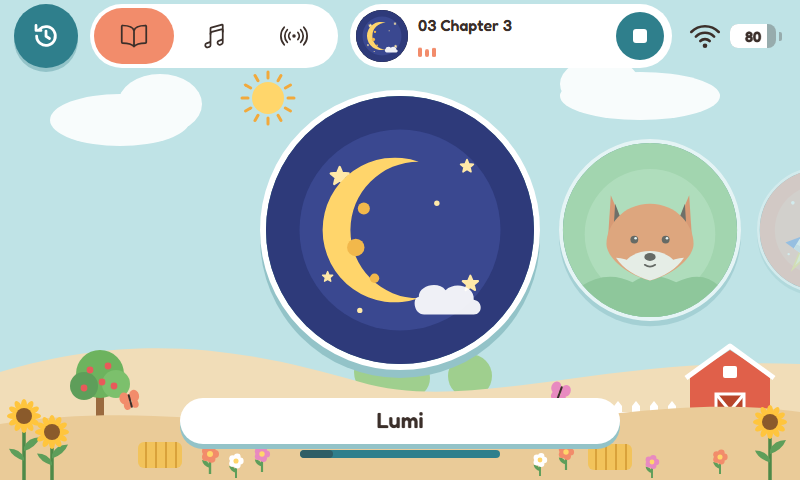
“Now playing” at the top of the start page's header
The music can go on when the child leaves the player. Then Now playing appears at the top of the header on the start page and in the album lists: cover, title and a stop button. A tap on it opens the player again, the stop button ends playback.
This behaviour is a setting: Settings › Audio › Volume › Back in the player.
- Minimise (default): the music goes on. The back button in the player shows an arrow pointing down.
- Stop: the music stops and the display goes back one level. The back button shows an arrow pointing left.
This applies to all kinds of content: your own files, Spotify, podcasts, radio and NAS.