
The player
A tap on an album or a track opens the player and starts playback
A tap on an album or a track opens the player and starts playback.
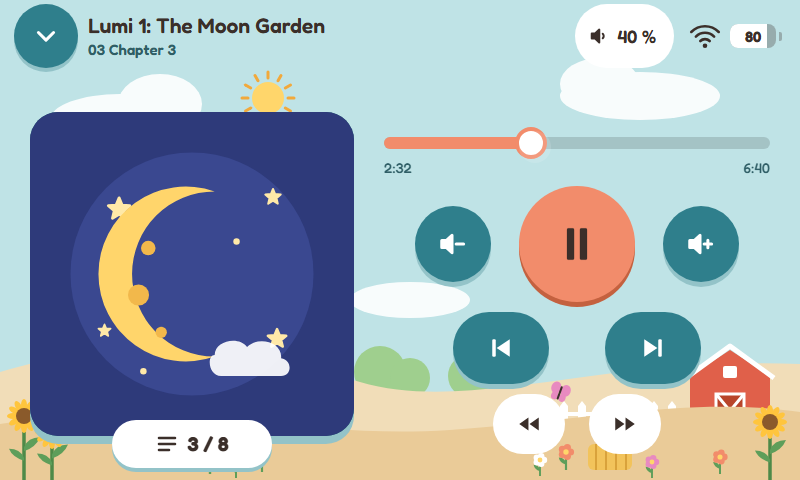
The player: title, progress, volume, skipping and seeking
The controls
| Element | Effect |
|---|---|
| Play / Pause | start or pause playback |
| Previous / next track | jump to the track before or after |
| Rewind / fast-forward | jump back or forward within the track |
| Shuffle | play tracks in random order; only for Spotify in the categories Music and Radio & podcasts |
| Louder / quieter | change the volume, limited by the maximum the parents have set |
| Volume at the top | shows the volume in percent; with a paired Bluetooth device you choose next to it where the music plays (see below) |
| Back button at the top left | leave the player (see below) |
Depending on the kind of content, not all elements are there. For a radio station the player shows Live instead of the progress bar, and the buttons for skipping and seeking are missing.
The track list
The track list shows all tracks of the album or playlist. It opens in two ways:
- Tap the button below the cover. It shows the track number, for example “3 / 19”.
- Or press and hold the cover until the list opens. How long is set under Settings › Display & controls › Controls on the display › Hold times › Hold time for the track list (0.5 to 5 seconds).
Tap a track to play it. The button below the cover on the left closes the list again. Radio stations and podcasts via RSS have no track list.
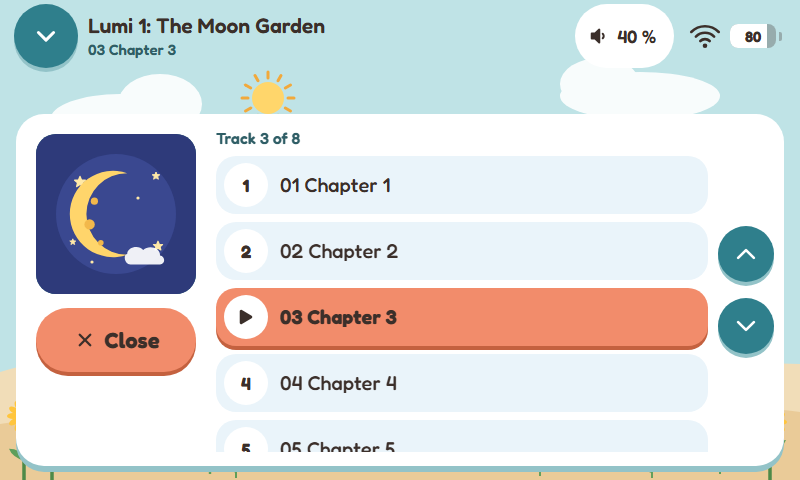
The track list with the current track
Box or headphones
If a Bluetooth device is paired, the header shows a field next to the volume with the symbol of the output the music is playing through: speaker (the box), Bluetooth or headphones (the 3.5 mm output). When it does not play through the speaker, the field is coloured. A green dot means the Bluetooth device is connected but not playing; a red dot means it was not found (off or out of range), and the box says so below the header. With exactly two outputs a tap switches to the other one at once. With more outputs a tap opens the Listen with window, where the child chooses.
If the box has several sound outputs (for example the 3.5 mm output next to an I²S amplifier, HDMI or a USB audio adapter), each one is a tile of its own in the Listen with window: Speaker (the box's sound card, for example the amplifier), 3.5 mm (with a headphones symbol), HDMI or USB, with the name the system gives it below. The window then opens without a paired Bluetooth device too. The box remembers the choice across a restart too. You switch on the 3.5 mm output next to a sound card of its own under Settings › Audio › Sound card › Headphone jack (Sound and volume). With only one sound output everything stays as before.
Without a paired device the header shows only the volume. You can switch the choice on the display off under Settings › Display & controls › Controls on the display › Headphones › Choose box or headphones on the display. In the app switching always works (Bluetooth).
What happens when the player is left?
By default the music goes on when the child leaves the player with the back button. At the top of the header Now playing then shows what is playing, with a stop button. You set this under Settings › Audio › Volume › Back in the player: Minimise (the music goes on) or Stop (the music stops). More: Continue and “Now playing”.
Podcasts
For podcasts the box remembers where an episode stopped and marks new episodes with a dot. A bar shows episodes that have been started, a tick those that were listened to the end. You set this under Controls on the display › Continue listening and › Podcasts (Podcasts and radio).
When the playtime is used up
If the daily limit is reached or a quiet time is running, the display shows a message for the child instead of the player. You can change the text under Settings › Appearance › Text on the display (Playtime and quiet times).