
The start page
The start page shows the content of the box, sorted into categories. The categories are tabs at the top of the display, each with a symbol
The start page shows the content of the box, sorted into categories. The categories are tabs at the top of the display, each with a symbol:
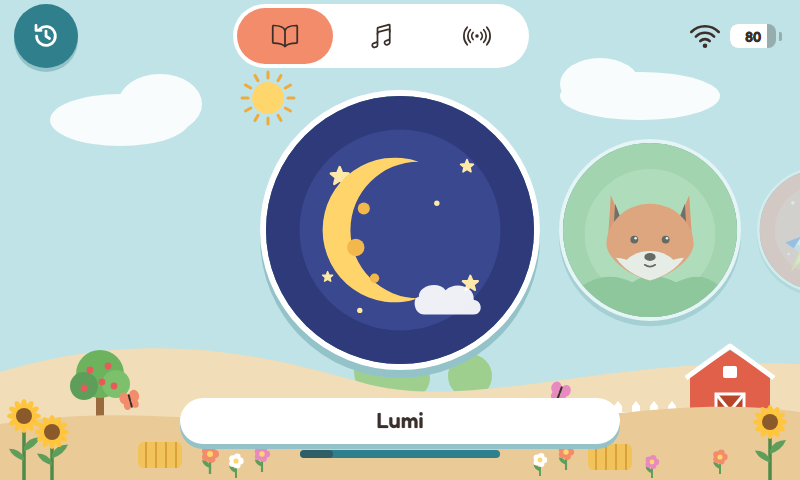
The start page with the Audiobooks category
| Category | Symbol | Content |
|---|---|---|
| Audiobooks | book | audiobooks and radio plays |
| Music | notes | music |
| NAS | server | folders from the network drive that are not assigned to another category (NAS) |
| Radio & podcasts | radio waves | radio stations and podcasts |
When you add content you decide which category it goes into (Adding content). Folders from the NAS can also be in Audiobooks, Music or Radio & podcasts. If all shown NAS folders are in one of these categories, the NAS tab goes away.
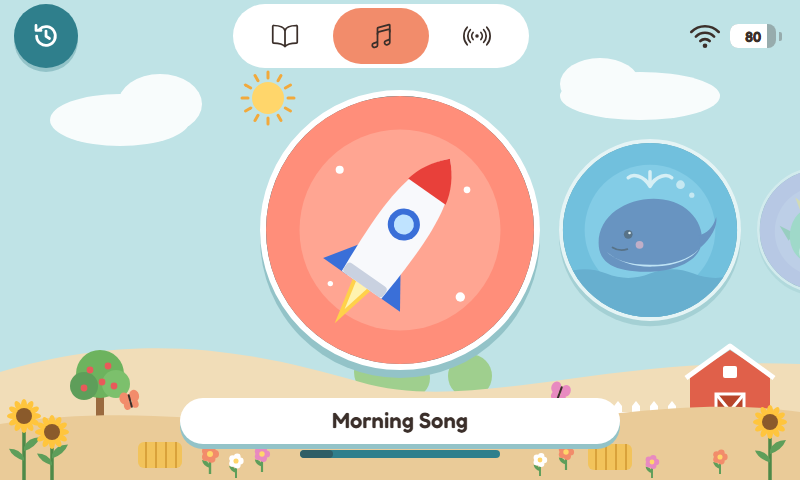
The Music category
How the covers are arranged
- After installation the cover flow view is on: one large cover lies in the middle, its neighbours are smaller. Swipe sideways to move the list. If you tap a cover at the edge, it moves to the middle; the middle one opens with a tap.
- If you switch it off, three covers stand side by side, the name below. Swipe sideways to page on. A tap on a cover opens it.
- The theme coverflow has an arrangement of its own: the covers are tilted, only the middle one faces front. Here too a cover at the edge first moves to the middle.
Under Settings › Appearance › View you set:
- Cover flow view (stage): on (default) or off, for all themes except coverflow,
- Read the name aloud when the cover stops: only with the cover flow view (voice and language: Audio › Speech output),
- Show folder and album names: only with the theme coverflow,
- Scroll bar below the covers: Default (as the theme has it), Full width (across the whole width and thicker, easy to hit with big fingers) or Hide. You can drag the bar, also in the cover flow view: the covers follow, and on release the nearest one snaps into place,
- Header with background and Player with background panel: only for the older plain themes (such as blue, green, red, dark). Switched off, the header lies on the background without a coloured band, and the player's buttons stand without a panel, in the colours of the header,
- Full screen by swipe gesture: only with the theme coverflow, see below.
Full screen in the theme coverflow
Swiping up with two fingers hides the header and makes the covers bigger. Two fingers down bring it back. Without the header:
- one finger from the bottom edge upwards: one level back (like the back button),
- two fingers from the right or left edge sideways: the next or previous category.
The box remembers whether the header is hidden. If you switch Full screen by swipe gesture off, the header is back at once. Zooming with two fingers is always off on the box.
Folders and albums
Some entries are folders, for example an artist or a series of radio plays. A tap opens the folder and shows its albums. The back arrow at the top left goes up one level.
Hiding tabs
If you have no NAS content, for example, hide the tab: Settings › Display & controls › Controls on the display › Tabs on the display. Every tab has a switch, on means visible. The visible tabs share the width. At least one stays visible.
Resume
The clock symbol to the left of the tabs opens the Resume list with the most recently played items, so the child carries on listening exactly where they stopped. How many entries it has is set under Controls on the display › Continue listening › Entries under “Resume”. More: Continue and “Now playing”.