
Covers and themes
The theme determines colours, backgrounds and fonts of the display. There are 67 themes, from plain colours (light, dark, blue, red …) through childre…
Themes
The theme determines colours, backgrounds and fonts of the display. There are 67 themes, from plain colours (light, dark, blue, red …) through children's worlds (space, underwater, fire brigade, horse farm …) to character themes, plus the theme Custom with a picture of your own. You choose it under Settings › Appearance › Theme: tap a theme and then Show now or On the next reload.
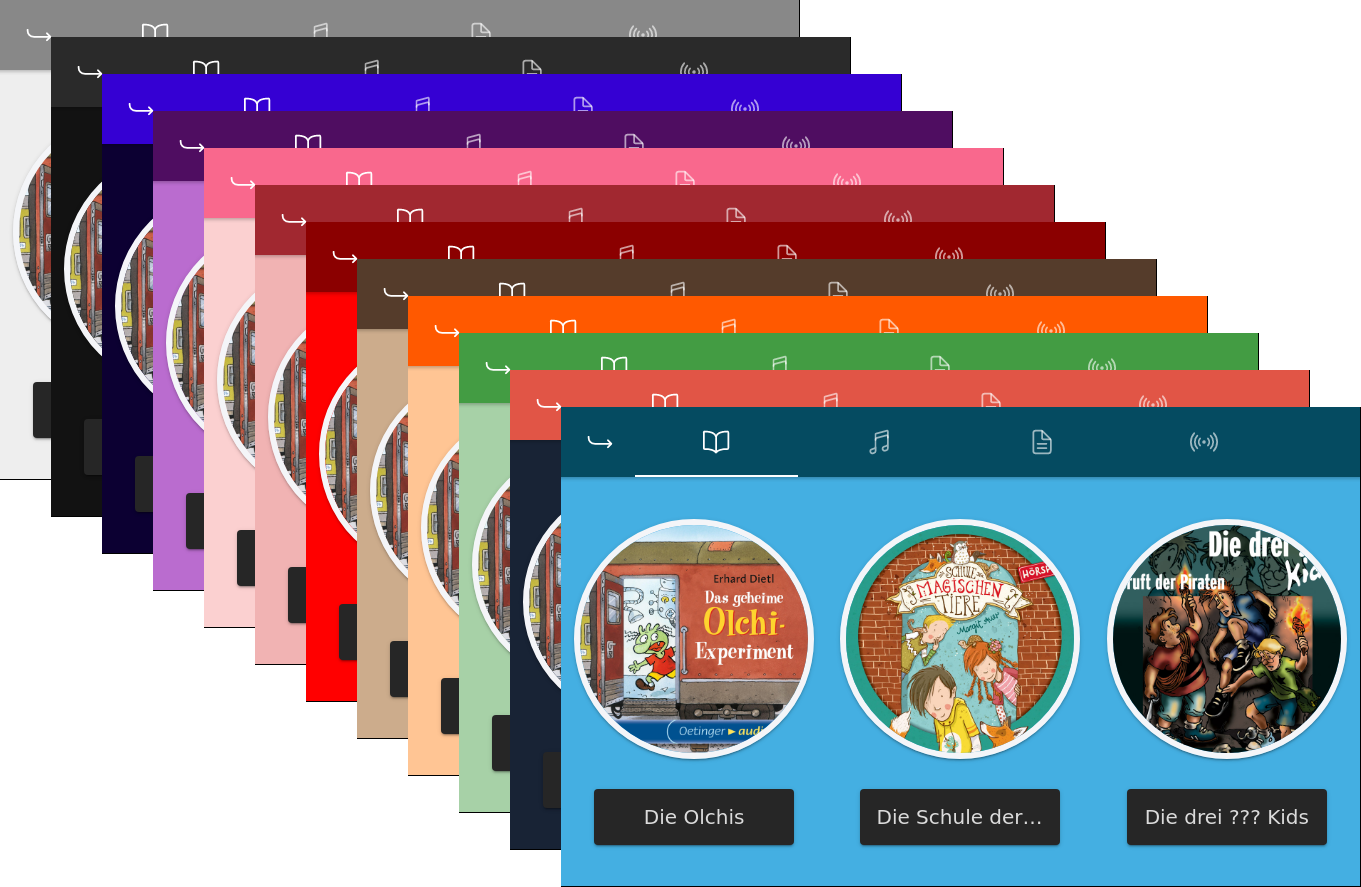
A selection of the themes
Custom theme
The theme Custom shows a background picture of your own. Tap Custom on the theme page and choose a photo or picture from your device. The app crops it to the display's format.
As long as Custom is active, Your own theme is at the top of the theme page. There you swap the picture (Another image) and set how much the picture is darkened or lightened, whether writing and symbols are light or dark, the accent colour, and the font and font size of the names. The box shows every change at once.
Boot and maintenance screens
Under Settings › Appearance › Boot and maintenance screens you choose the boot screen (15 scenes or the card, or a random one at every start) and the maintenance screen. It appears during an update, during installation, when a new Wi-Fi is set up, when switching off and when the battery is empty. A preview shows beforehand what the picture looks like for each occasion.
Under Custom images you can use your own photo or logo instead of the ready-made scenes for the boot, goodbye and battery-empty pictures. The pictures are generated on the box after saving and can be seen from the next start.
Text on the display
What the child reads when the limit is reached, a quiet time is running or the QR code for parents appears, you change under Settings › Appearance › Text on the display. If a field stays empty, the text of the set language applies.
Covers
Every album, podcast and radio station shows a cover. Where it comes from:
- a picture that you uploaded yourself or gave as an address,
- the picture that lies in the folder (
cover.jpgor similar) or is embedded in the file, - for Spotify the cover from Spotify,
- for albums without a picture of their own, if you want, an online cover from iTunes or Deezer (Covers).
If the box finds no picture at all, it shows the theme's placeholder picture. If you want a real cover, upload one (Covers).