
First boot – from installation to your first audiobook
Find the box, open Admin, protect it, test audio and start your first local audiobook on MuPiBox NG.
If you have not yet prepared the SD card, begin at Installation.
1. Find the box
Wait until the touchscreen shows categories and covers. Without a display, find the device (often named mupibox) in your router. In a browser on the same network open http://mupibox.local:8090/admin/ or http://<box-IP>:8090/admin/. Port 8090 is important; mDNS names do not work on every network.
2. Secure Admin immediately
Under Box → Security, create your own Admin password. The password in the DietPi template is a separate SSH password. Do not expose the Admin port directly to the Internet. See Security.
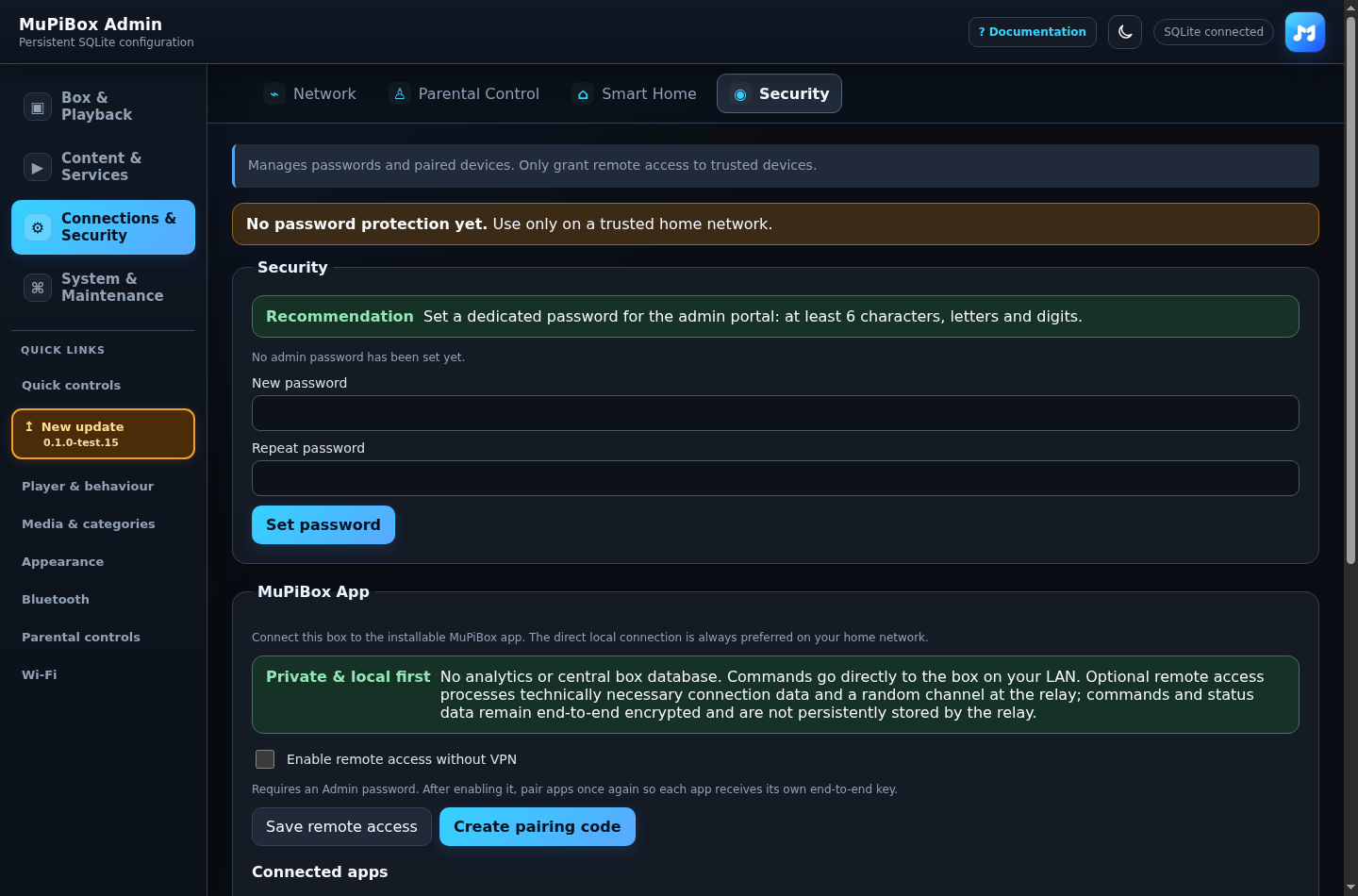
Demo screenshot from a test installation; a real box must be protected by an Admin password.
3. Test network, sound and display
Set the name and time zone under General. Check Network. Under Hardware → Audio, select the actual output and play the test tone; set starting and maximum volume under Audio. If silent, use Audio troubleshooting.
4. Add your first audiobook
- Enable File sharing and copy a small audiobook directory to the music share.
- Under Content → Media & categories, open or create a category such as Audiobooks.
- Select Add medium → Local media and the folder you copied.
- Save, then open the cover on the touchscreen and test playback.
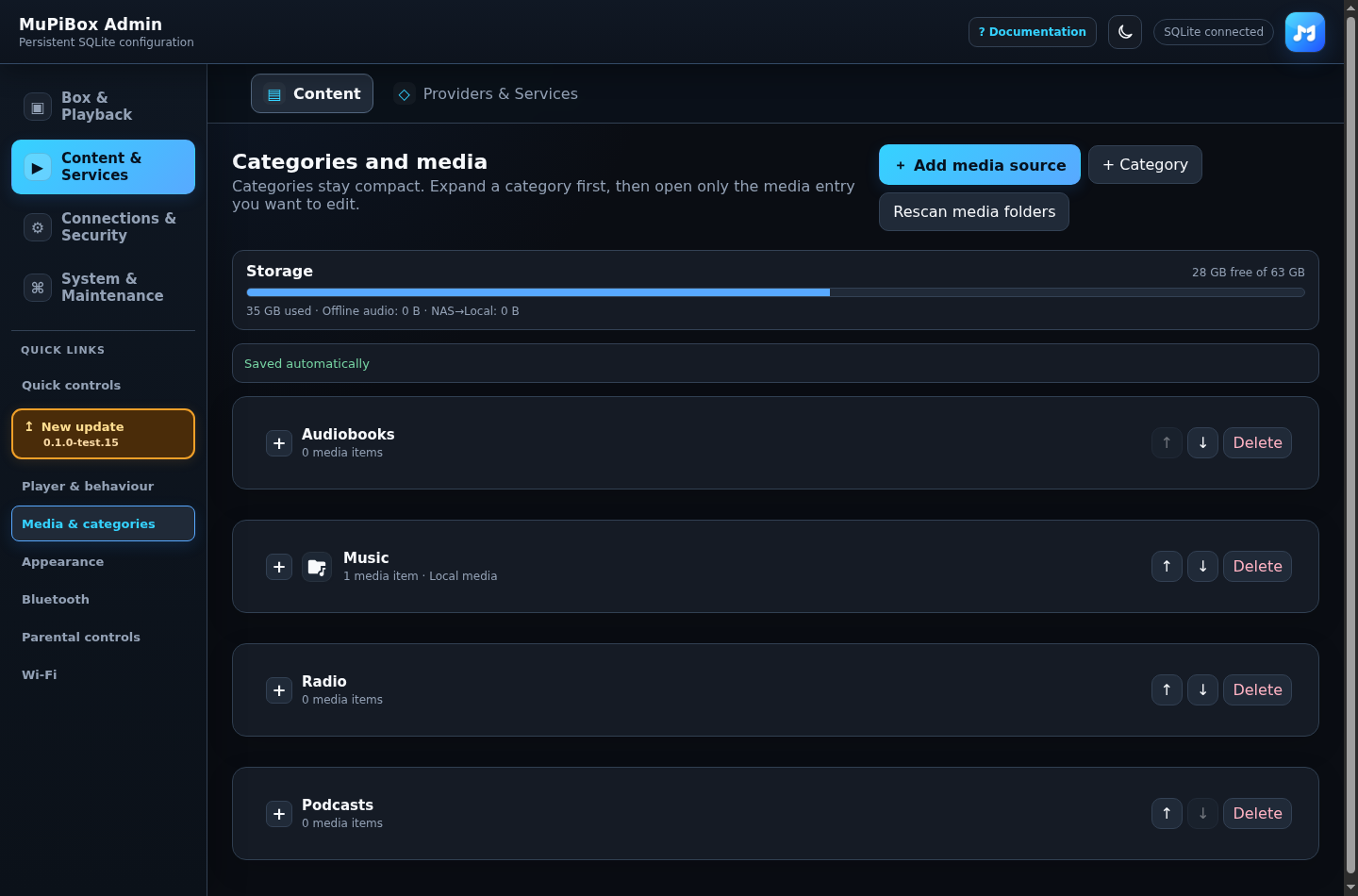
Example media management in the Admin; you will see your own content.
5. Finish safely
Choose Display & touch, Design, optional RFID and Buttons. Configure Parental control and volume limits. Make an external Backup.
Done when: local playback works, volume is limited and Admin requires a password. Continue with Touchscreen guide or Setup checklist.